



Beyond the Chatbot: How to Turn Claude Code into Your Full-Time AI Assistant

If you feel like the AI world is moving faster than you can keep up, you are certainly not alone. Most people are still just “chatting” with AI, but a new tool called Claude Code is changing the game by actually performing real-world labor—from deep web research to scheduling your social media. This guide will show you how to set it up, even if you don’t have a single technical bone in your body.
1. The Launchpad: Setting Up Your Claude Account
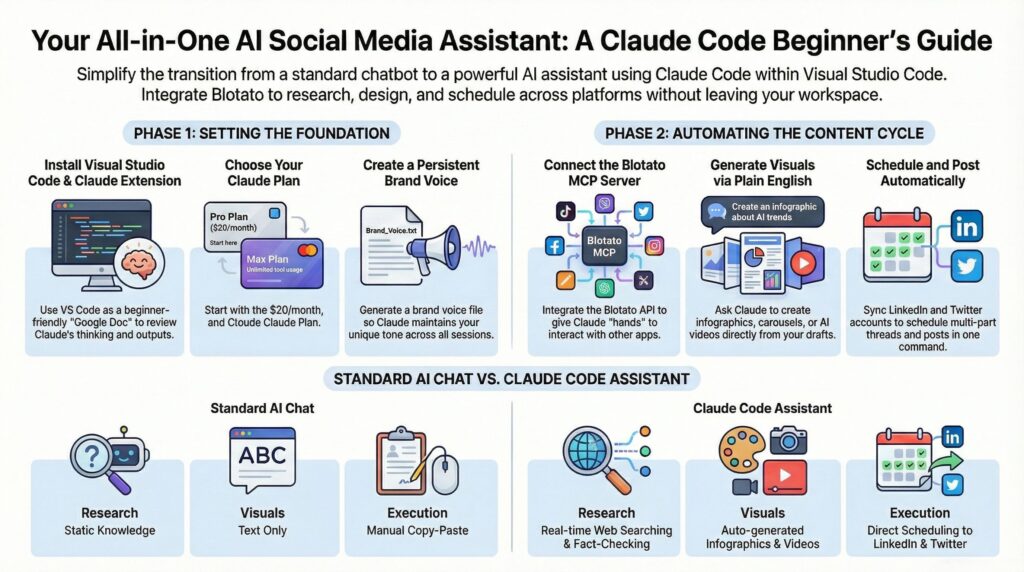
Before you can automate your life, you need an account at claude.ai. Once you’re in, you’ll face a choice on billing.
- The Beginner Route ($20/month): The Pro plan is the best place to start if you’re just testing the waters.
- The Power User Route ($200/month): If you plan on having Claude call multiple tools like Google Sheets, Airtable, or Notion, you will likely hit usage limits on the cheaper plan. The “Max” plan is designed for those who want to use Claude as a high-leverage employee that never hits a wall.
2. The “Google Doc” for Developers (VS Code)
While there are complex ways to install Claude Code through a terminal, the easiest method for beginners is using Visual Studio Code (VS Code). Think of VS Code as a Google Doc for developers. It provides a clean workspace where you can actually see Claude’s “thinking process” and review the files it creates in real-time, which is much less intimidating than a black terminal screen.
- Download VS Code from code.visualstudio.com.
- Install the Claude Code extension (the orange icon with over 4 million downloads).
- Open an empty folder on your computer to give Claude a dedicated “office” to work in.
3. Giving Your AI a “Memory” and a Voice
One of the most frustrating things about AI is having to repeat your instructions. Claude Code fixes this through Persistent Memory.
You can ask Claude to create a brand voice file. It will interview you about your tone, how you like to end your posts, and what you want to sound like. It then saves this information into a persistent memory file that loads every time you start a new session, ensuring it remembers your preferences automatically.
4. The Secret Sauce: MCP (Model Context Protocol)
The reason Claude Code is more powerful than a standard chatbot is MCP. MCP allows the AI to leave its “chat box” and interact with the apps you actually use, like your email, CRM, or social media schedulers.
By integrating an MCP server like Blotato, you can turn Claude into a social media powerhouse.
The AI Assistant Workflow:
- Content Research: You can paste a YouTube or TikTok URL into the chat, and Claude will use MCP to extract the entire transcript and summarize the key arguments in seconds.
- Visual Generation: You can tell Claude, “Make a whiteboard infographic for this post,” and it will generate the visual for you using AI models within about a minute.
- Automated Scheduling: Once you’re happy with a draft, you don’t need to copy and paste it into Twitter or LinkedIn. Simply tell Claude to schedule the post for “Thursday morning,” and it will handle the publishing for you across your connected accounts.
5. Why This Changes Everything
The goal isn’t to let the AI run wild, but to use it as a partner that handles the tedious “manual labor” of your day. Whether it is fact-checking your drafts against multiple sources or creating an Instagram carousel from a podcast link, Claude Code provides the leverage you need to scale yourself without needing a massive team.
Stop searching for “perfect tutorials” and start treating Claude as a collaborator. Open VS Code, click that orange icon, and ask: “What can you do for me today?

