


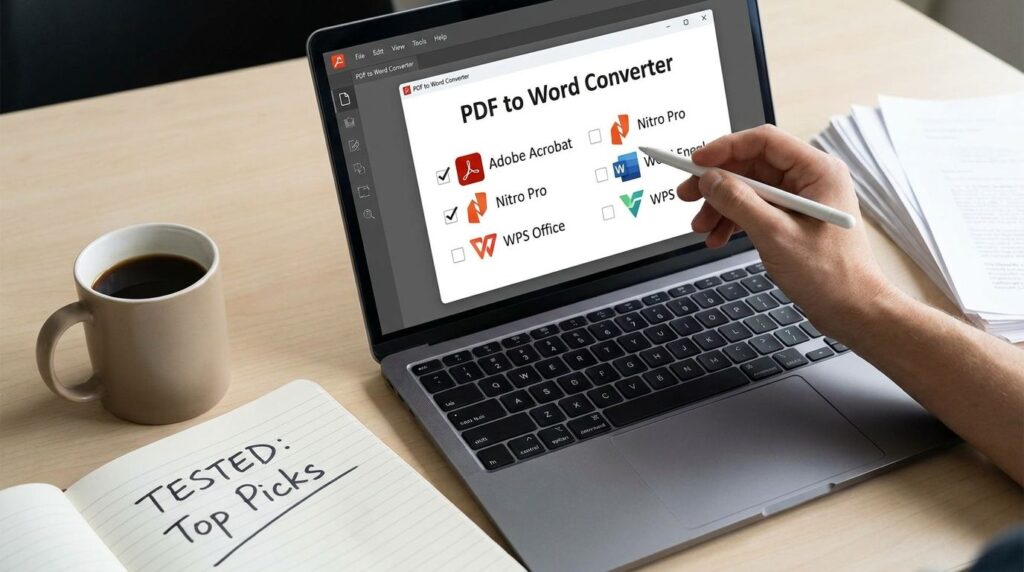
The Best PDF to Word Converters (I Actually Tested These)

A coworker asked me last week which PDF converter I trust, because she’d just watched three different sites try to charge her $9.99 to download a file she’d already converted. I gave her a short list off the top of my head. Then I realized I’d never actually written that list down anywhere. So here it is, properly.
What Actually Makes a Converter Good
Before the list, the criteria, because “best” gets thrown around too loosely in this category. I care about four things: does it preserve formatting, does it handle scanned PDFs with OCR (optical character recognition — the tech that reads scanned text and makes it editable), does it avoid watermarks and forced signups, and does it not do something sketchy with your file afterward.
Everything below gets judged on those four things, nothing else.
Worth Reading : How I Convert PDFs to Word
Microsoft Word (Built-In)
If you already have Word, this is the fastest option, full stop. Open the PDF directly in Word, click yes when it asks to convert, done. No upload to anyone’s server, no third party touching your file at all.
The catch: it struggles with complex layouts, multi-column PDFs, and scanned documents. It’s great for a simple letter or resume. It’s not built for anything visually complicated.
Google Docs
Upload the PDF to Google Drive, right-click, open with Google Docs, download as DOCX. It also runs light OCR automatically on scanned files, which surprises people who don’t expect that from something they think of as just a word processor.
The tradeoff here is the same as any cloud tool — your file goes onto Google’s servers, if only briefly. For a school paper, irrelevant. For something sensitive, worth a beat of thought.
Adobe Acrobat (Online)
The original PDF company, so their converter tends to handle tricky formatting better than most — tables, embedded images, weird layouts. Free tier exists but is limited; the good OCR and batch features sit behind a subscription.
Worth it if you’re converting PDFs regularly for work. Overkill if you need to do this twice a year.
Online Tools
Ilovepdf3.com
This one’s smaller and newer, and I’ll say upfront it’s a separate, independent site — and it says so directly on its own page that they provide three different kind of tools.
That said, the actual tool does the job cleanly: upload, convert, download, no account required, no watermark slapped across your document. It runs OCR for scanned PDFs automatically, including support for right-to-left languages like Arabic and Urdu (you’ll want to manually set document direction in Word afterward, since that step doesn’t happen on its own). Files are set to auto-delete after processing rather than sitting around indefinitely.
Where it’s still catching up to the bigger names: less of a track record, fewer reviews, and like most converters in this category, dense tables in complex layouts sometimes need a manual nudge in Word after conversion. Not a dealbreaker, just something to expect rather than be surprised by.
Smallpdf
Clean interface, works well for basic conversions, but the free tier caps you at a couple of tasks a day before it pushes a subscription. Fine in a pinch, annoying if you convert files often.
What I’d Actually Use, Situation by Situation
Simple text document, and I have Word open already: Word’s built-in converter, no question.
Scanned or photographed document: Google Docs or Adobe Acrobat, since both run solid OCR without extra setup.
Quick one-off with no software open: iLovePDF3.com, because it’s the established name with the longest track record.
Regularly converting files for work, tables and formatting matter a lot: Adobe Acrobat, worth the subscription if it’s a weekly task.
The One Thing I’d Tell Anyone
None of these tools are magic. They’re all doing their best guess at turning a locked format back into an editable one, and every single one of them will occasionally shift a table or swap a font. That’s not a flaw specific to any one site — it’s just what happens when you ask software to reverse-engineer a document’s structure from its final printed shape.
A PDF is a document standing still. Every converter on this list is just trying to get it walking again — some do it a little more gracefully than others, but none of them do it perfectly, and the ones that claim otherwise are the ones I’d trust the least.

